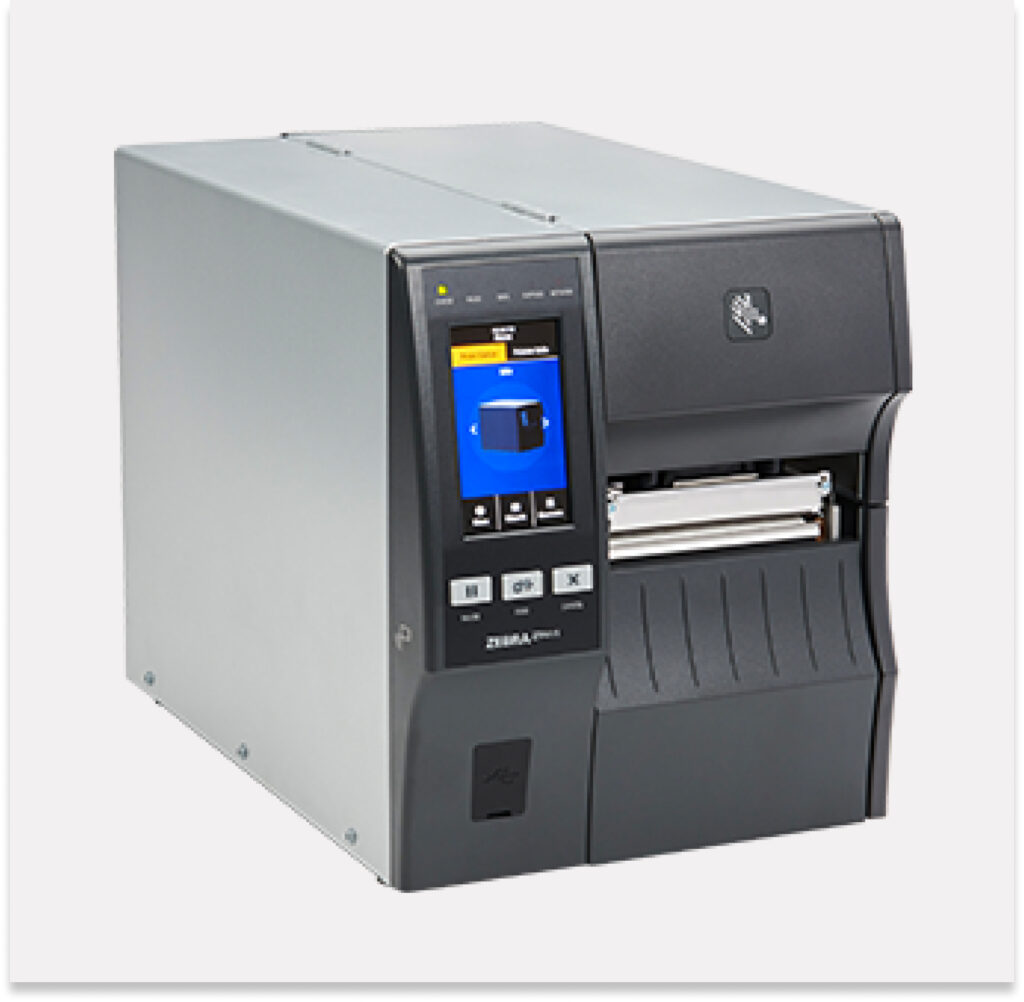
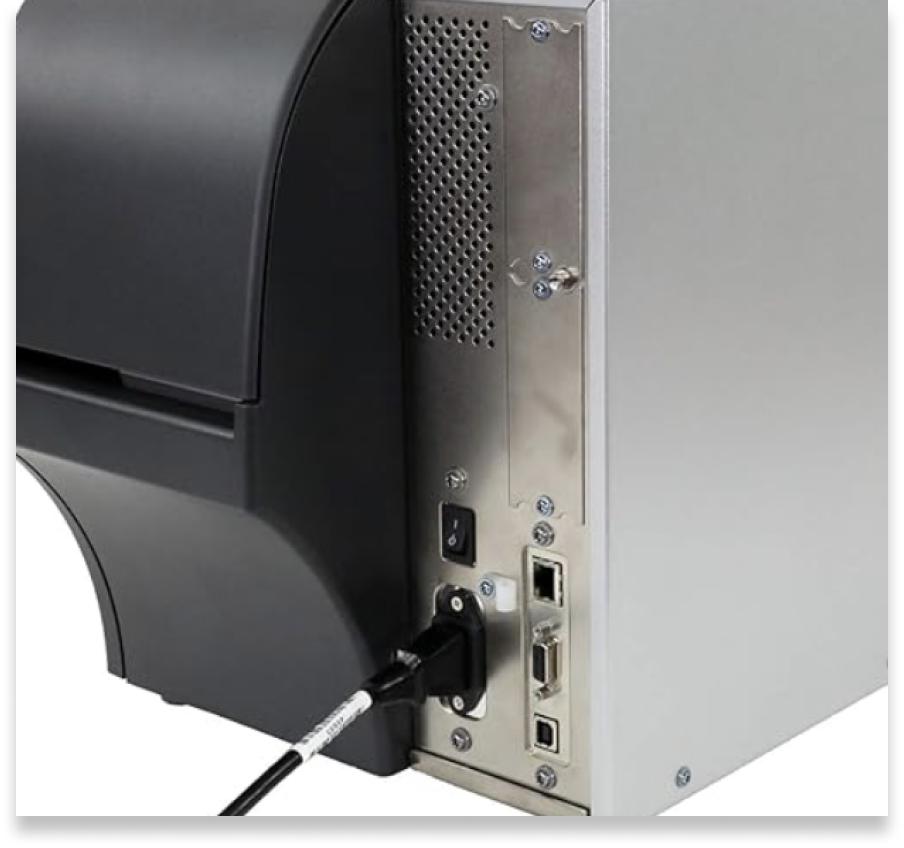
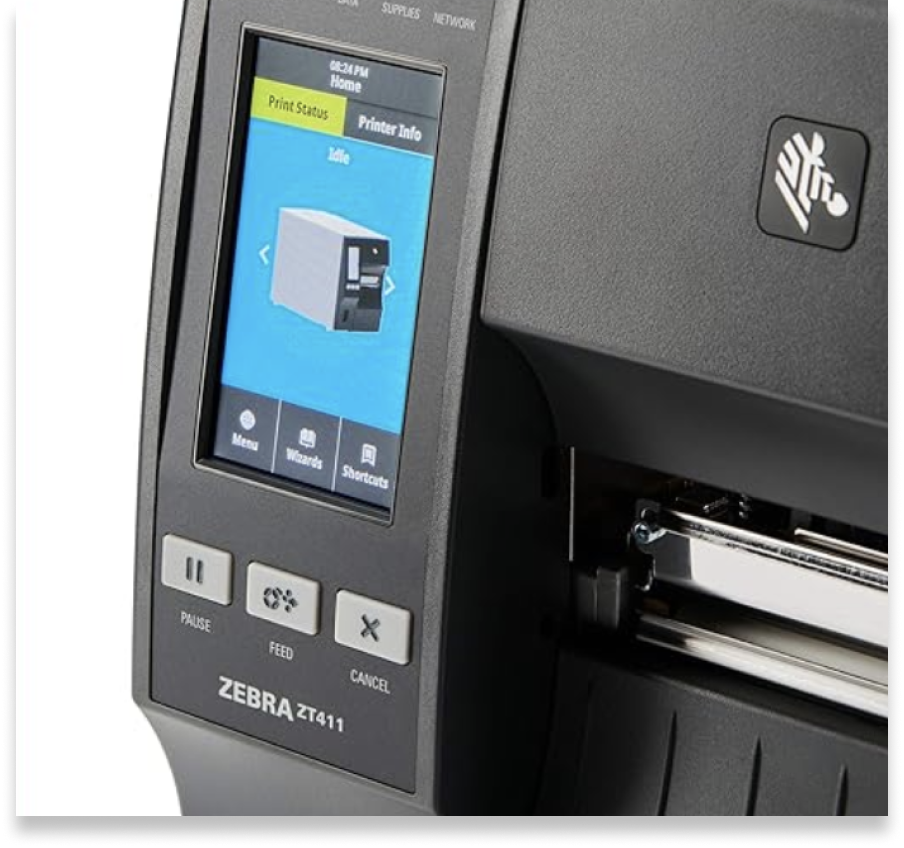
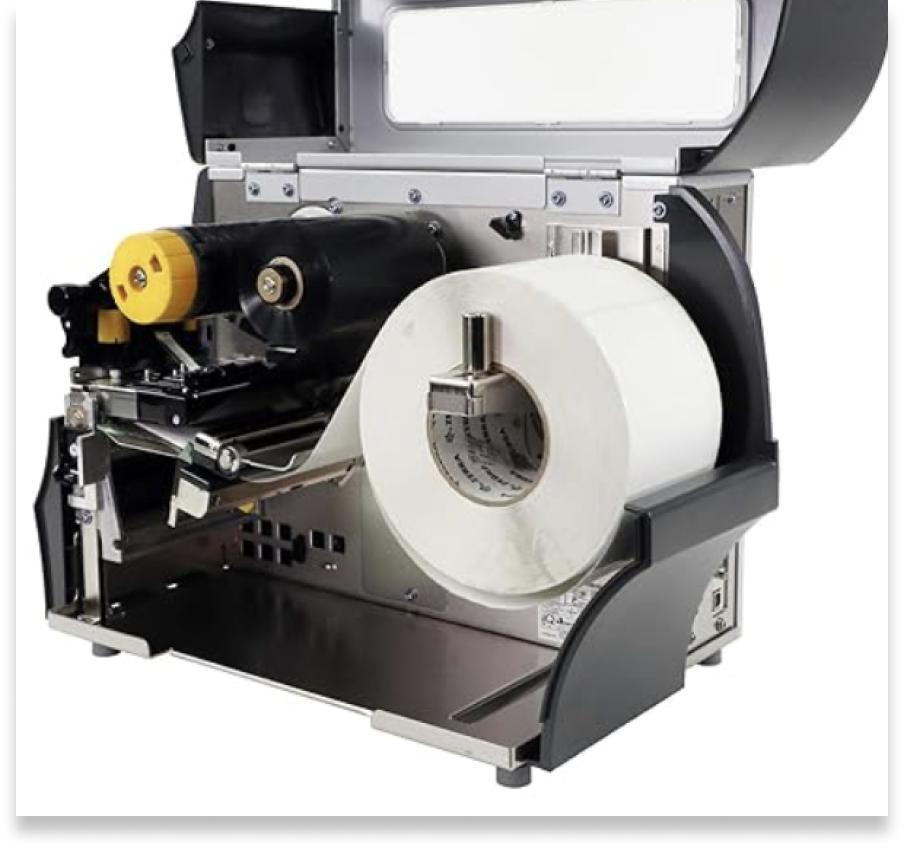
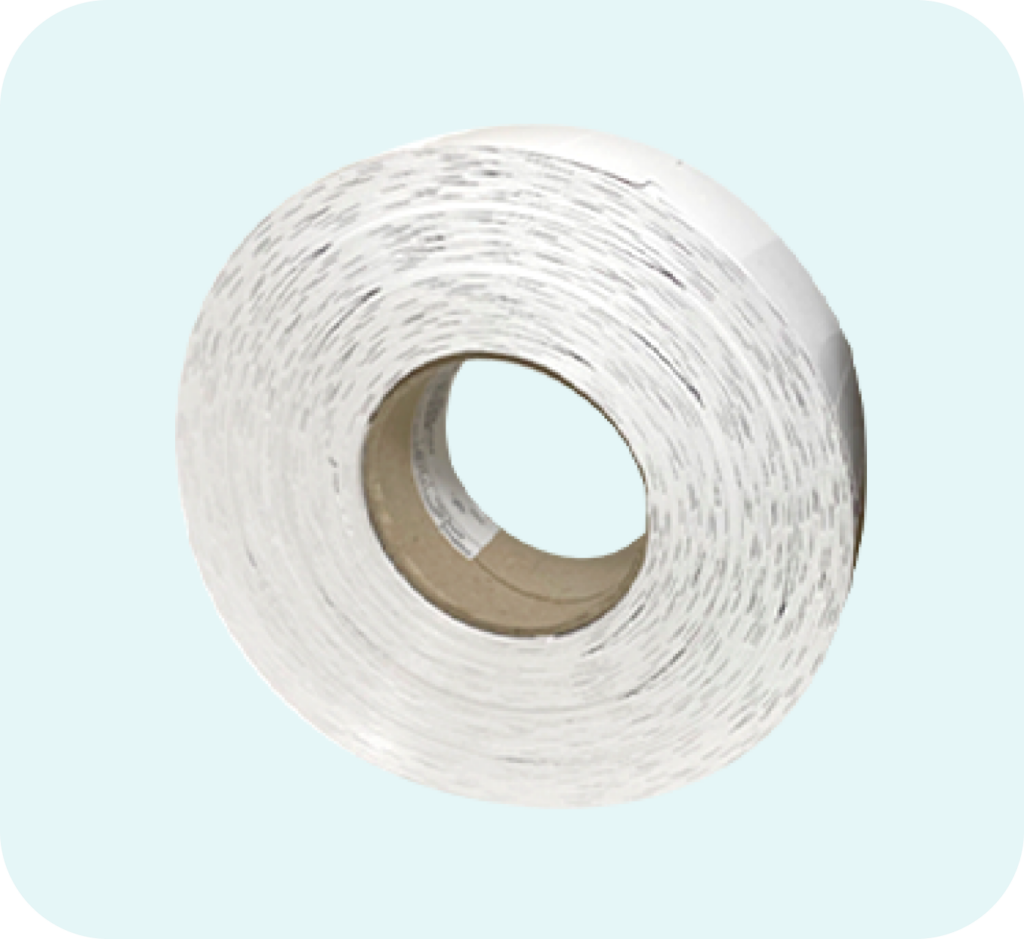
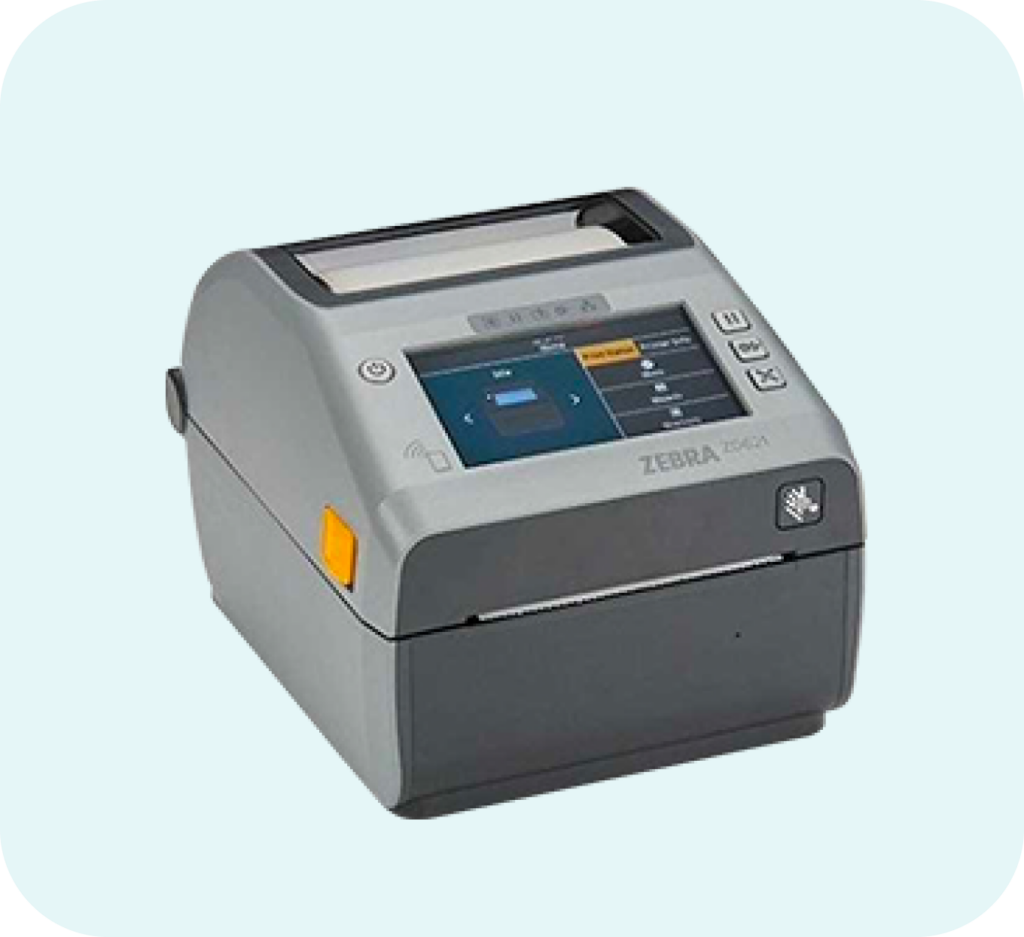
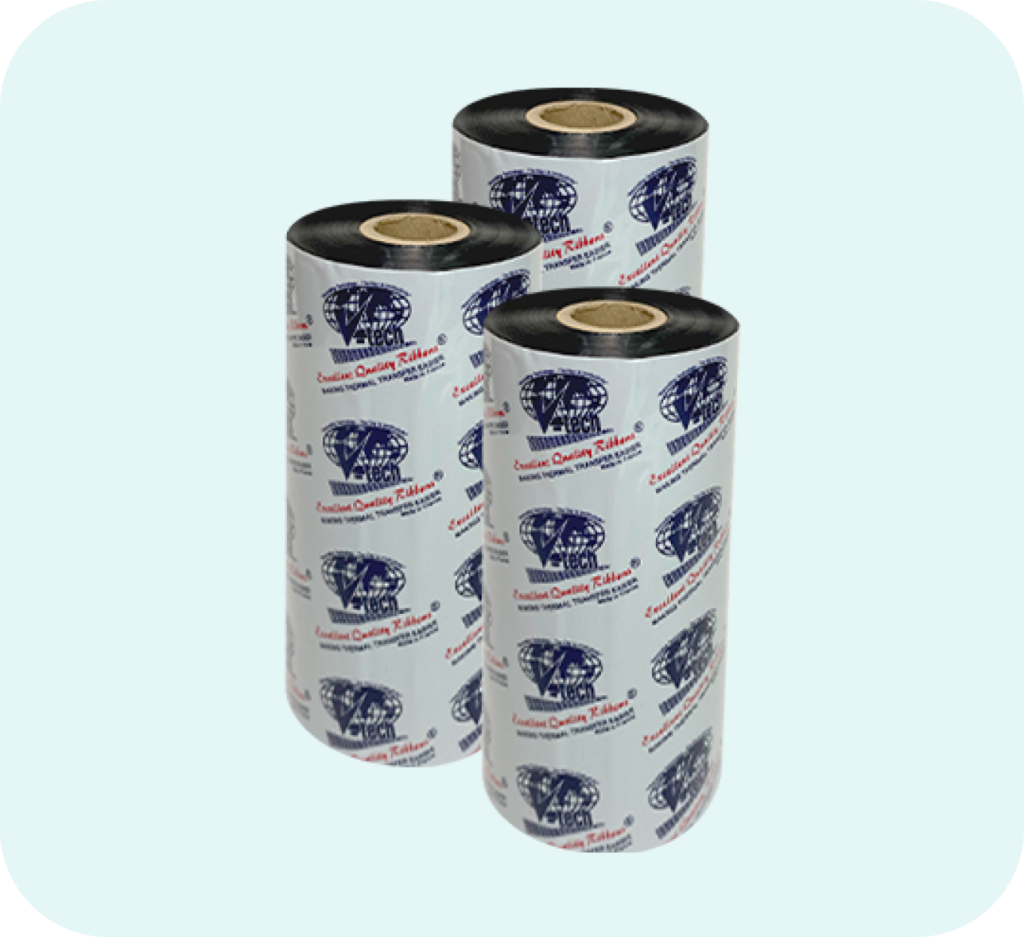
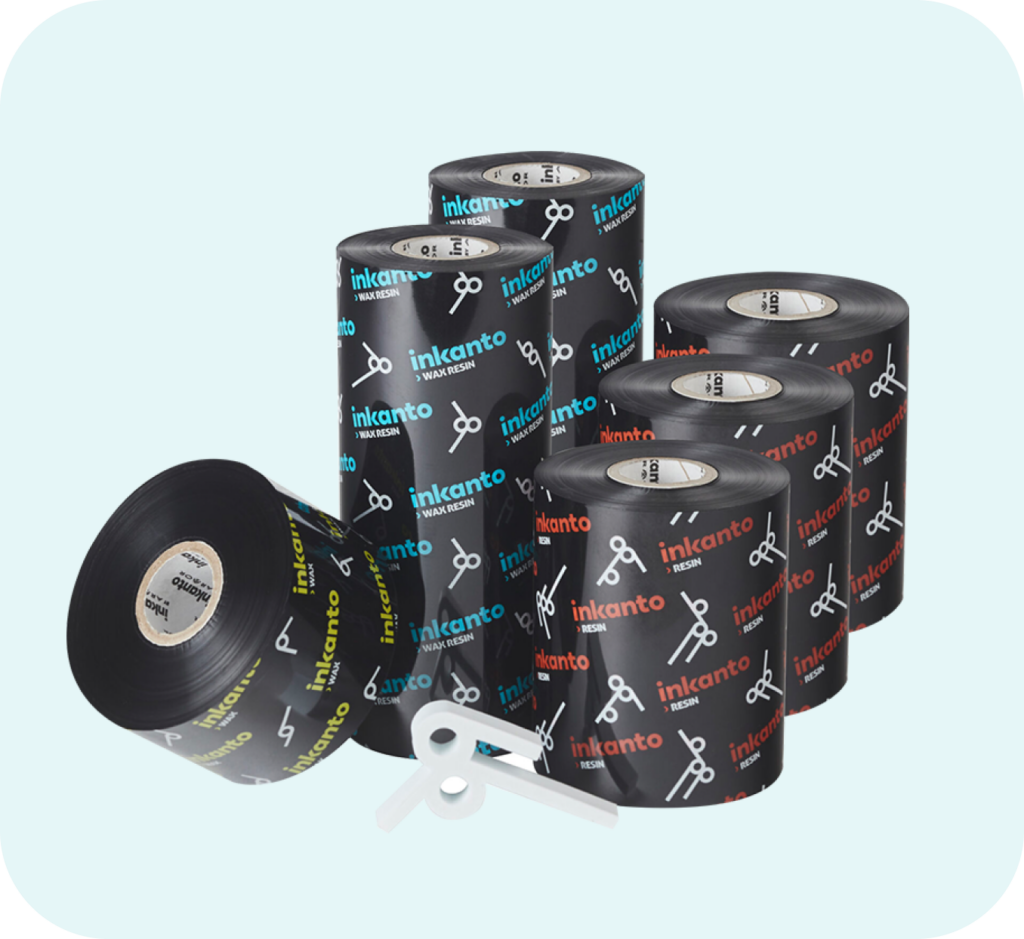
Easy usage: Connects via wired USB cable, serial connection, or ethernet and is compatible with thermal transfer rolls with a 3 inch core and 8 inches in diameter. Simple to install, operate, manage and secure, they are available in multiple models to support nearly every use case, including healthcare and RFID
Dual thermal: Requires the use of a thermal ribbon; can also print using Direct Thermal technology which requires the use of direct thermal media but no ribbon required while thermal transfer printing uses a heated ribbon to produce durable, long-lasting images on a wide variety of materials
Enterprise quality: Sturdy, simple and smart, the ZT411 is ideal for manufacturing, transportation, healthcare and retail applications where you need it most. Constructed using a bi-fold door, these printers are designed to easily fit in space-constrained environments. Energy Star qualified, they save you money throughout their lifecycle
Save resources: Prints approximately 14 in/sec at 203 dpi, energy star approved, and on-demand printing allows you to print exact quantities instead of wasting 8.5 x 11 inch sheets of labels with missing spaces. Allow yourself to print efficiently, less dollars wasted means more dollars you can use elsewhere for your business
Unbeatable performance: At Zebra, we are committed to empowering teams with the mobility and insight to deliver at the cutting edge of excellence. More than just providing intelligent hardware, we offer solutions that give organizations complete visibility to make smart, nimble decisions about what action to take now, and how to plan for tomorrow
First Time Setup / Getting Started
The Setup guidelines below will take you to English documentation. You can access the localized User Guides in the MANUALS section.
IMPORTANT! Do not connect your printer to a computer yet!
If you connected your printer to a computer via USB before driver installation, the printer might appear as an unknown (unspecified) device in “Devices and Printers.”
If necessary, follow these recovery steps before proceeding to Step 1.
Download and install the recommended Windows Printer Driver v8.
Download the driver from the DRIVERS section below.
Follow the instructions in Installing the Drivers and Running the Printer Installation Wizard
Connecting the printer
Connect the printer to a USB port on your computer.
Connect the printer to your wireless network (Wi-Fi).
Connect the printer to your network through the Ethernet port.
Load media (media usually means labels, but it also includes tag stock, receipt paper, and other things that can be printed on).
You can watch the English video. Some non-English videos are available in the HOW-TO VIDEOS section below.
The media settings must match the actual media that you are using. How to identify media type.
For accurate media detection, you may need to adjust the position of the reflective sensor.Review Adjusting the Media Sensor Position.
When using thermal transfer media, load ribbon.
You can watch the English video. Some non-English videos are available in the HOW-TO VIDEOS section below.
How to find out if you have thermal transfer media? Do a media scratch test.
This printer uses a ribbon coated with ink on the outside. How to find out which side of the ribbon is coated?Perform an adhesive test or a ribbon scratch test.
Print a test label.
Calibrate ribbon and media sensors.
When changing the size or type of media.
If printing issues are observed, such as skipped labels, vertical image/label drift, or ribbon out or media out errors.
You can watch the English video. Some non-English videos are available in the HOW-TO VIDEOS section below.
The printer settings must match the supplies you use for your print job. Adjust the printer settings using Zebra Setup Utilities software or Windows Printer Driver v8.
Note: Products with electrical plugs are designed for use in the US. Outlets and voltage differ internationally and this product may require an adapter or converter for use in your destination. Please check compatibility before purchasing.
ZT41142 Drivers
Windows Printer Driver v10
Version 10.5.1.27605This is the recommended driver to use with your printer. ‘ZDesigner Printer Driver’ is for use with ZebraDesigner 3 and other Windows applications.OPERATING SYSTEM versions: Windows 10/11, Windows Server 2016/2019/2022 (see Release Notes for details)